Convert a QR code image to SVG without breaking the scan
Create a sharp QR-code SVG while preserving square modules, finder patterns, contrast, and the quiet zone required for reliable scanning.
Quick answer
If you know the URL or data, regenerate the code with the SVG QR code generator instead of tracing the pixels. This preserves the module grid and quiet zone exactly. Trace an existing image only when the encoded data is unavailable, and never apply curve smoothing or artistic corner rounding. Export the SVG, render a proof at the final size, and scan that proof with multiple phones before production.
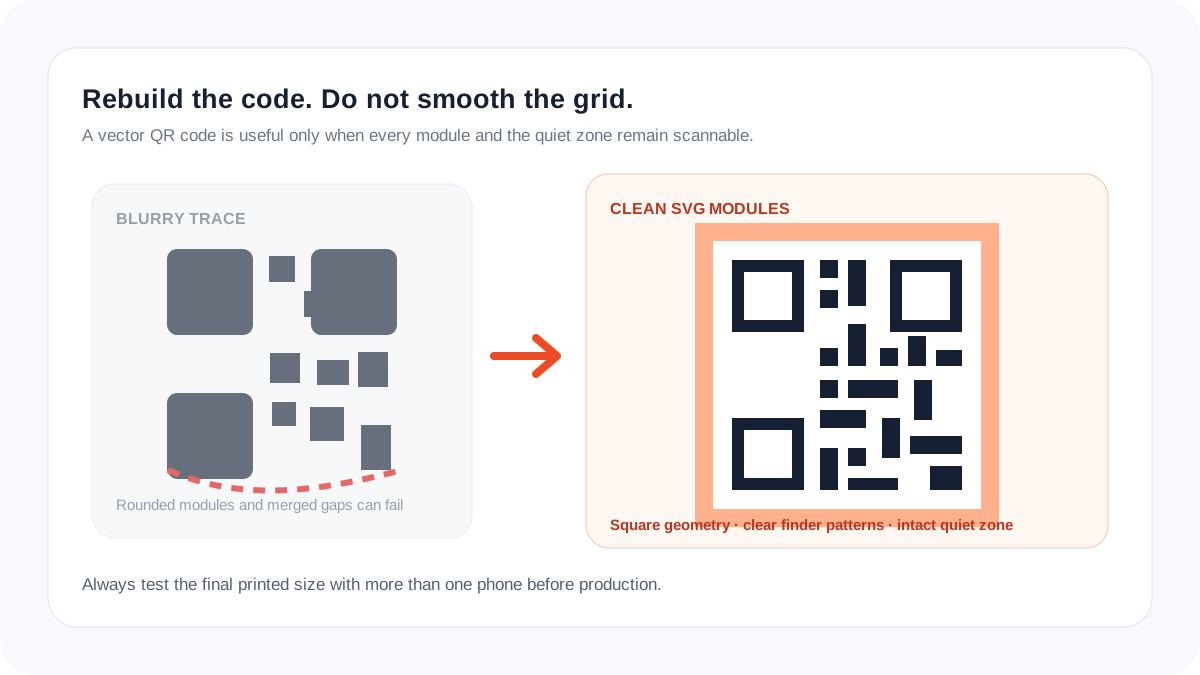
QR codes are data grids, not ordinary artwork
A logo can tolerate a slightly different curve. A QR code cannot tolerate arbitrary changes to its square modules, finder patterns, timing pattern, or surrounding blank area. A trace that looks cleaner to a person may be harder for a camera to decode.
Regeneration is safer because it creates the grid from the payload and selected error-correction settings. Keep the destination stable: a perfect vector code still fails users if its URL is broken or redirected incorrectly.
Common QR-to-SVG failures
| Failure | Why it matters | Fix |
|---|---|---|
| Rounded or melted modules | Grid boundaries become ambiguous | Regenerate square modules |
| Quiet zone cropped | Camera cannot isolate the symbol | Restore clear margin |
| Low contrast | Detection fails in weak light | Use strong foreground/background contrast |
| Logo covers too much code | Error correction is exceeded | Reduce logo and retest |
Scan-safe SVG workflow
- Confirm the exact destination and whether the current code may be replaced.
- Regenerate a fresh SVG whenever the payload is known.
- Keep the quiet zone clear; do not add text, borders, or artwork inside it.
- Avoid gradients, transparency, warped perspective, and low-contrast color pairs.
- Print or render at the smallest real size on the actual substrate.
- Test several camera apps, angles, distances, and lighting conditions before releasing the file.
Mistakes that a screen preview can hide
- Testing only the large SVG on a monitor.
- Placing a white QR code on a transparent background without controlling the substrate.
- Using a generic logo vectorizer that rounds every square.
- Assuming error correction guarantees scans after any decoration.
Preflight checklist
- The payload opens the correct secure destination.
- Finder patterns and modules remain square and aligned.
- The quiet zone is unobstructed.
- Foreground and background have strong contrast.
- The final physical proof scans on multiple devices.
Frequently asked questions
Can I vectorize a screenshot of a QR code?
Yes, but regeneration from the original URL or data is safer. A screenshot may already contain scaling blur, cropping, or compression.
Can the QR code use brand colors?
Often yes, when contrast remains strong and the final proof is tested. Avoid relying on subtle gradients or transparent backgrounds.
Should I add a logo in the center?
Only with enough error-correction margin and repeated real-world tests. The logo must not cover critical finder or timing structures.