How to convert a ChatGPT image to an editable SVG
Turn a ChatGPT-generated PNG into clean editable SVG paths without tracing shadows, texture, or a fake white background.
Quick answer
Download the original ChatGPT image instead of taking a screenshot. Choose a version with flat colors, clear edges, little texture, and no shadow. Remove any unwanted background, convert the clean source with Image to SVG, then inspect colors, tiny fragments, text, and embedded raster content with the SVG design checker. A vector-looking PNG is not an editable vector until the visible regions have become real paths.
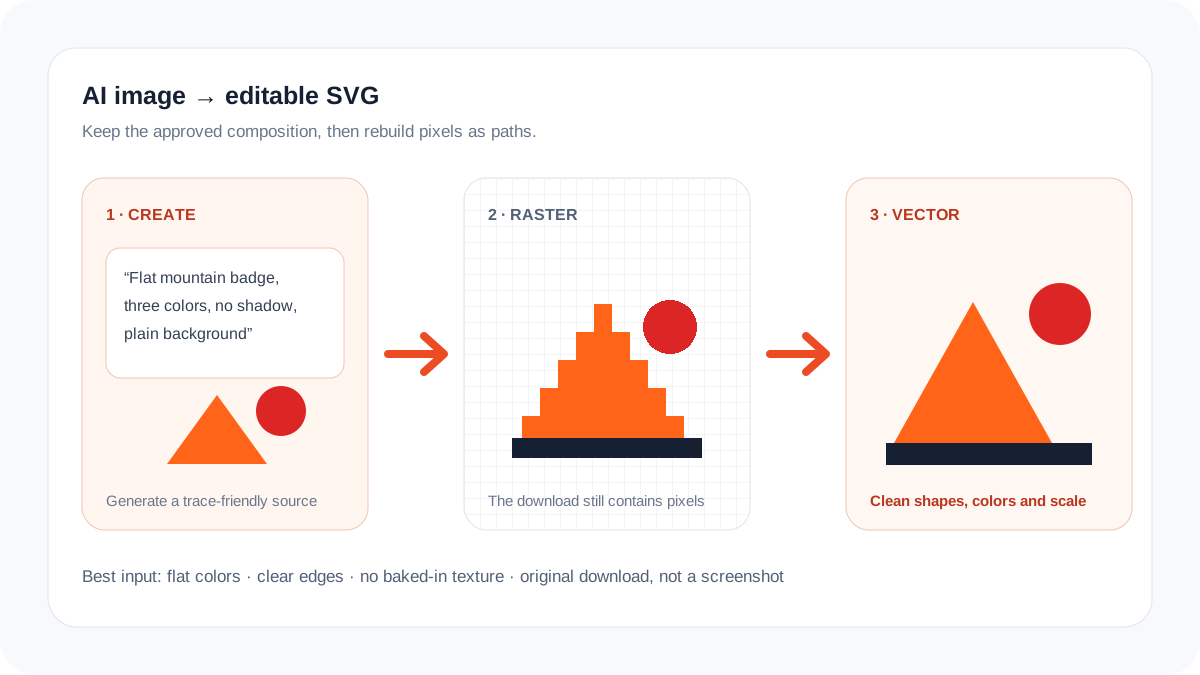
Generation and vectorization are different jobs
An image generator decides composition, style, lighting, and visible detail. A vectorizer receives the finished pixels and reconstructs boundaries, colors, and curves. Asking for “vector style” can improve the source, but it does not turn a downloaded raster image into SVG geometry.
Plan for the final use before generating. A flat icon for a website, a one-color mark for vinyl, and an illustrated sticker need different amounts of detail. If the result must remain faithful to an approved image, trace that exact download rather than asking another model to redraw it from memory.
Which AI images convert cleanly?
| Source characteristic | Vector result | Best action |
|---|---|---|
| Flat shapes and 2–6 colors | Compact, editable paths | Vectorize directly |
| Soft shadows or glow | Extra translucent regions | Remove the effect first |
| Detailed photograph | Thousands of shapes or posterization | Keep it raster |
| Small generated lettering | Distorted letter outlines | Rebuild text with the correct font |
A reliable ChatGPT-image-to-SVG workflow
- Generate a simple source: request flat colors, clean negative space, no mockup, no paper texture, and no shadow when those effects are not part of the final artwork.
- Download the original image file. Screenshots add scaling and interface artifacts that make edge detection less reliable.
- Crop unrelated canvas space and remove the background only when it should truly be transparent.
- Use Logo to Vector for marks and badges; use Image to SVG for broader flat illustrations.
- Compare the raster and vector at 200%, 400%, and 800%. Review holes inside letters, repeated circles, corners, and thin gaps.
- Open the downloaded SVG in a vector editor. Confirm that colors are selectable shapes and that no full-canvas raster image remains embedded.
Mistakes that create messy AI vectors
- Tracing a screenshot instead of the original download.
- Keeping near-white gradients that become a large background path.
- Trying to preserve photographic texture as thousands of tiny vector regions.
- Assuming generated words are typography; rebuild important names and slogans separately.
Final quality checklist
- The SVG contains paths or shapes rather than one embedded image.
- The number of colors matches the intended palette.
- The artwork works on both light and dark backgrounds.
- Small gaps and counters remain open at the final size.
- You keep the original raster beside the approved vector master.
Frequently asked questions
Can ChatGPT export a true SVG of the image it generated?
It may write SVG code for simple geometry, but a downloaded generated image should be treated as raster artwork. Check the actual file for editable path elements instead of trusting the filename or appearance.
Should I upscale the image before vectorizing it?
Use the largest original download first. Upscaling can make inspection easier, but it cannot recover exact geometry that was never present.
Which generated images should stay PNG?
Photographs, painterly scenes, complex gradients, and texture-heavy art usually remain more practical as PNG, WebP, or JPEG.