Is my PDF logo really vector? 7 ways to check
Learn how to tell whether a PDF logo contains real vector paths or only an embedded raster image before sending artwork to print, signage, or production.
Quick answer
A PDF is not automatically vector. It can contain paths, live text, photographs, transparency, and embedded PNG or JPEG images in the same document. Zooming is a useful first test, but the strongest check is opening the PDF in a vector editor and selecting the logo’s individual shapes. If the entire mark behaves like one rectangular image, extract the best available raster source and rebuild it with Logo to Vector.
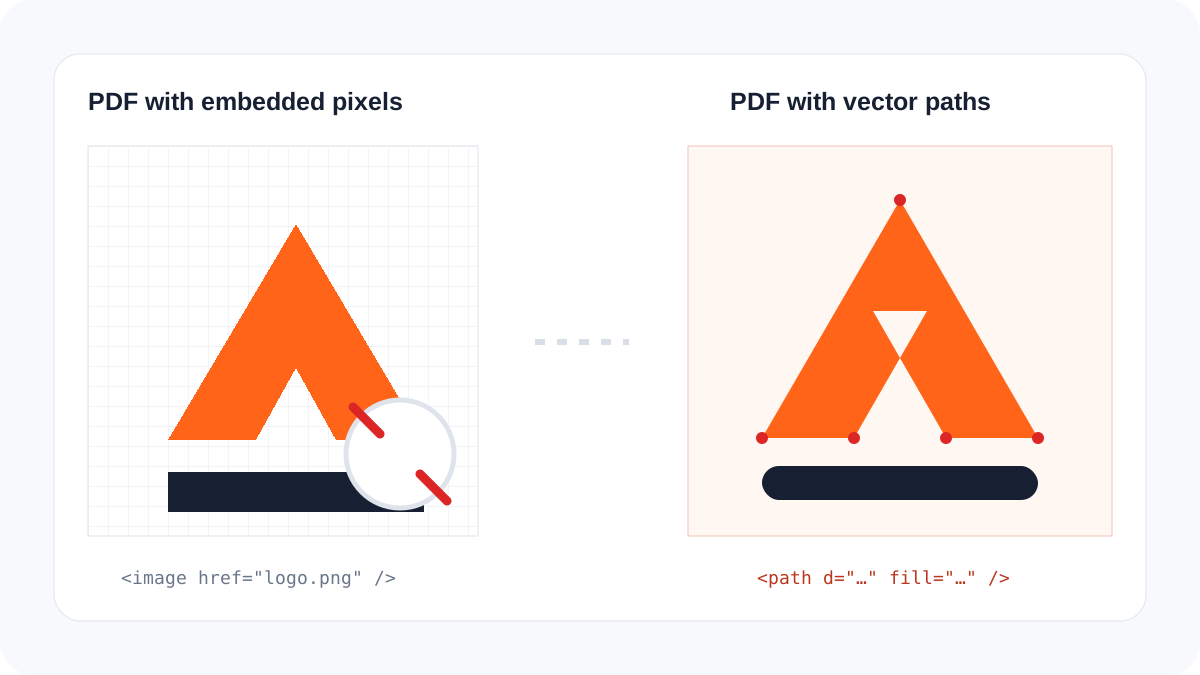
Seven practical checks
- Zoom deeply: inspect diagonal edges and curves at 800 percent or more. Pixels indicate raster content, although a high-resolution image can hide them at lower zoom.
- Select one shape: in a vector editor, try selecting a single letter, circle, or color region.
- Look for a rectangle: one bounding box around the complete logo is a strong raster warning.
- Change one fill: a real path should allow an individual color change without painting pixels.
- Inspect the document structure: path and text objects indicate vector content; image objects indicate embedded raster content.
- Check file size carefully: a large file can suggest a photograph, but size alone never proves the format.
- Ask the production provider: printers may need outlined text, spot colors, bleed, CMYK data, or a different container even when the logo itself is vector.
| PDF content | Scales cleanly | Selectable as paths | Typical next step |
|---|---|---|---|
| Vector logo | Yes | Yes | Check colors and fonts |
| Embedded PNG logo | Limited by resolution | No | Find a better source or vectorize |
| Live text | Yes, with font dependency | As text | Outline a delivery copy |
| Mixed page | Partly | Partly | Isolate and inspect the logo |
What zoom can and cannot prove
Smooth edges at 400 percent are encouraging, but a very large raster image can still look smooth. Conversely, a PDF viewer may render a valid vector preview poorly at one zoom level. Selection and object inspection provide stronger evidence than appearance alone.
Do not simply convert the PDF extension to SVG. If the PDF contains pixels, a format conversion can place those same pixels inside an SVG wrapper. True vectorization reconstructs the visible logo as geometry.
Prepare the delivery file
Keep an untouched PDF, isolate only the logo, verify proportions and approved colors, outline fonts in a copy when required, and remove unrelated page elements. After vectorization, use the SVG design checker to verify that no hidden raster image remains.
Frequently asked questions
Does a print-ready PDF always contain vectors?
No. “Print ready” describes suitability for a particular job, not a guarantee that every object is vector.
Can a PDF contain both vector and raster content?
Yes. A catalog page can contain vector logos and text beside raster photographs.
Should I vectorize photographs found in the PDF?
Usually not. Extract or request high-resolution photography and vectorize only shape-based artwork such as logos, icons, seals, and flat diagrams.