SVG has too many nodes? Simplify paths without ruining curves
Diagnose an over-complex SVG, remove duplicate geometry, reduce anchor points, and keep corners and curves accurate for editing or cutting.
Quick answer
Save a copy before editing. Remove hidden objects, duplicate paths, tiny specks, and unnecessary color regions first. Then simplify one important path at a time and compare its silhouette at 400% after every pass. Use the SVG optimizer for safe markup cleanup and the SVG design checker to find structural problems; neither file-size reduction nor fewer decimal places automatically fixes a geometrically noisy trace.
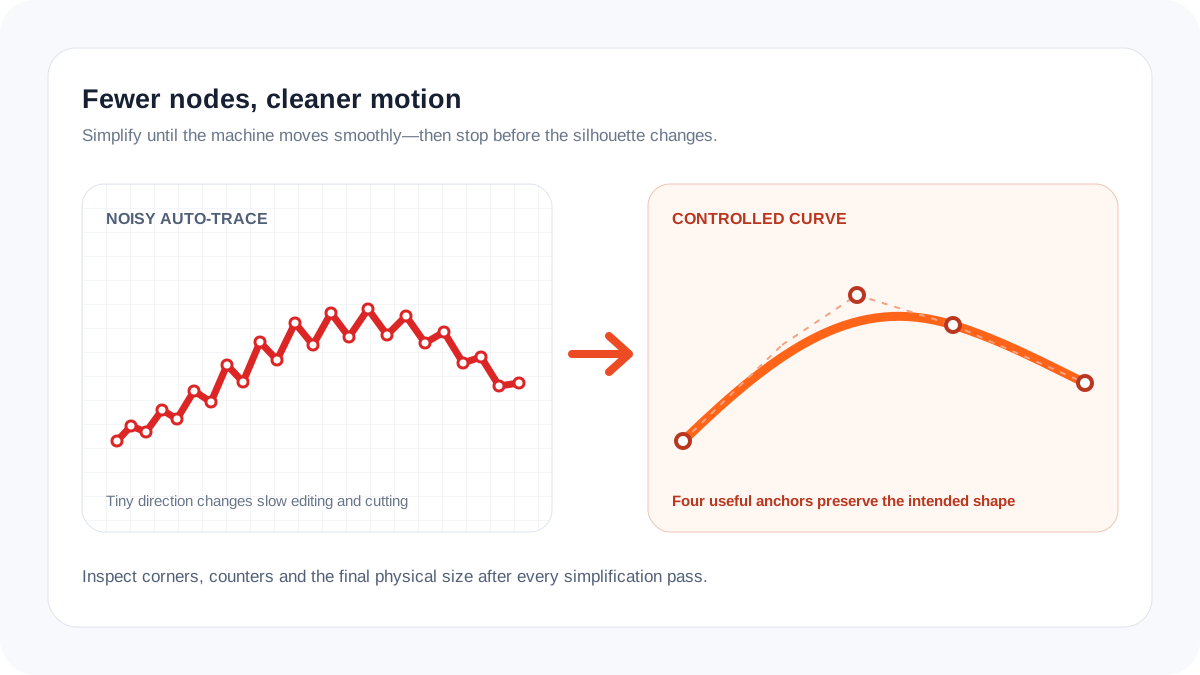
Path count and node count are different
An SVG may contain thousands of separate paths, or a handful of paths with thousands of anchor points. The first creates excessive layers and fragments; the second makes each curve difficult to edit and can force a cutter or plotter through many tiny direction changes.
Auto-traces accumulate nodes when the raster edge is noisy, compressed, too small, or interpreted with excessive detail. Cleaning the source and tracing again is often safer than aggressively simplifying a bad result.
Read the symptom before editing
| Symptom | Likely cause | Best first action |
|---|---|---|
| Editor lags when selecting | Too many objects or nodes | Count both paths and anchors |
| Cutter moves in tiny steps | Noisy curve geometry | Simplify and inspect the silhouette |
| File is large but curves are clean | Metadata or verbose markup | Optimize SVG code |
| Corners become rounded | Simplification is too strong | Undo and protect corner nodes |
Safe SVG cleanup workflow
- Duplicate the file and record its original dimensions and colors.
- Delete hidden layers, empty groups, off-canvas objects, duplicate paths, and raster images that do not belong.
- Remove specks and color fragments before simplifying the main silhouette.
- Simplify curves gradually. Keep intentional corners and letter counters under close inspection.
- Compare at the final physical size as well as high zoom; an invisible deviation may not matter, while a closed letter hole does.
- Reopen the exported SVG in the destination software and run a short material test before batch production.
What not to do
- Pressing Simplify repeatedly across the complete logo without checking each pass.
- Using file size alone as a quality metric.
- Combining unrelated shapes that need separate colors or operations.
- Leaving thousands of tiny trace fragments because they look harmless on screen.
Stop simplifying when
- Straight edges remain straight and curves no longer wobble.
- Distinctive corners and typography still match the reference.
- The destination app opens and edits the file smoothly.
- The cutter or plotter preview shows continuous, sensible motion.
- Further node removal visibly changes the silhouette.
Frequently asked questions
How many nodes should an SVG have?
There is no universal target. A circle needs very few anchors; an organic illustration needs more. Judge whether each node contributes to the intended shape.
Does SVG optimization remove nodes?
Code optimization usually removes metadata and redundant markup. Geometric simplification is a separate, potentially lossy operation.
Why does my cut become jagged?
Dense nodes can cause constant direction changes, but blade, speed, material, and calibration also matter. Inspect the path and run a small test.