How to turn a Canva logo into a real vector file for print
Check whether a Canva logo is truly vector, prepare a clean source, convert raster elements to SVG paths, and deliver reliable artwork for print.
Quick answer
Export the logo from Canva at the highest available quality, then inspect what the file actually contains. Simple Canva shapes and compatible icons can remain vector in an SVG export, while uploaded photographs, flattened artwork, effects, and raster logos can still be pixel-based. If the logo pixelates when enlarged or the SVG contains an embedded image, run the clean source through Logo to Vector, inspect the paths, and keep both an editable SVG and a high-resolution raster fallback.
SVG is a container, not a quality guarantee
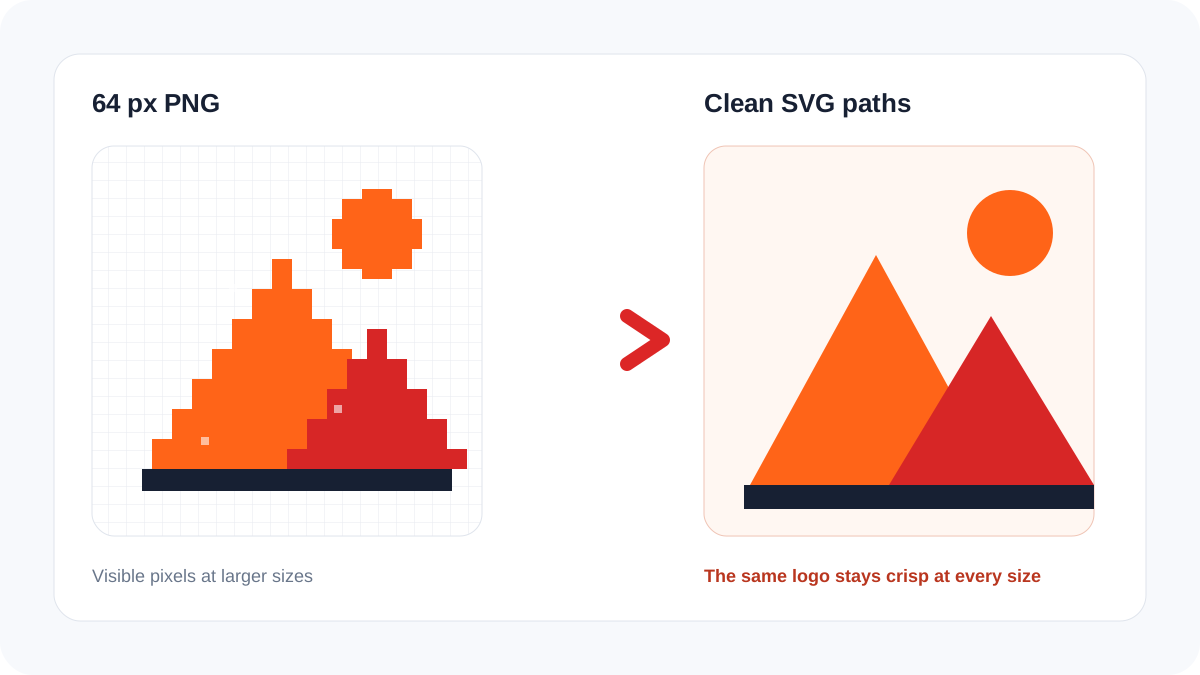
Canva can download designs as SVG, but the result depends on the elements used in the design. A file may contain real paths, text, clipping masks, or an embedded PNG. Renaming a PNG to SVG or placing pixels inside an SVG wrapper does not reconstruct curves. The practical question is therefore not “Does the file end in SVG?” but “Can the logo be selected and edited as shapes?”
| Inspection | True vector signal | Raster warning |
|---|---|---|
| Zoom to 800% | Edges remain geometrically smooth | Square pixels or blurred edges appear |
| Open in a vector editor | Individual paths can be selected | The whole logo behaves like one image |
| Inspect SVG source | Shape and path elements describe artwork | An image element references PNG or JPEG data |
| Recolor one region | A fill can be changed independently | Recoloring requires pixel editing |
A reliable Canva-to-print workflow
- Duplicate the Canva design and remove backgrounds, mockups, shadows, and decorative page elements.
- Export the isolated logo as SVG when available and also export a large transparent PNG for comparison.
- Check whether every required element is a path. Text should either use an agreed embedded workflow or be converted to outlines before final delivery.
- If raster artwork remains, upload the cleanest PNG to Logo to Vector. Do not vectorize an entire poster when only the logo needs rebuilding.
- Review circles, corners, letter counters, negative spaces, and brand colors at 200%, 400%, and 800%.
- Deliver the SVG plus the format requested by the printer. Keep the editable Canva design and original typography separately.
Match the file to the production job
Large signage, vehicle graphics, vinyl cutting, spot-color printing, engraving, and logo embroidery preparation benefit from clean shapes. A normal photograph inside a Canva layout should remain raster. Vectorization is for marks, icons, flat illustrations, and lettering—not for turning every photo into thousands of paths.
Before sending the file, use the SVG design checker to look for embedded images, missing viewBox information, live text, masks, or unusually complex geometry.
Frequently asked questions
Is every Canva SVG a real vector?
No. Vector-native elements can remain vectors, but uploaded or flattened raster elements may still be embedded as pixels. Inspect the actual file.
Why did the print shop reject my Canva PDF?
A PDF can also contain raster images, live fonts, transparency, or artwork unsuitable for the requested process. Ask the shop which format, color mode, bleed, and font treatment it requires.
Should I vectorize the complete Canva page?
Usually not. Isolate the logo or flat illustration, vectorize only that asset, and assemble the final layout in the appropriate design or prepress application.