Why does my SVG turn black or lose its colors?
Find out why an SVG becomes black, transparent, or incorrectly colored in a browser, Canva, Cricut, or another importer, and fix its fills safely.
Quick answer
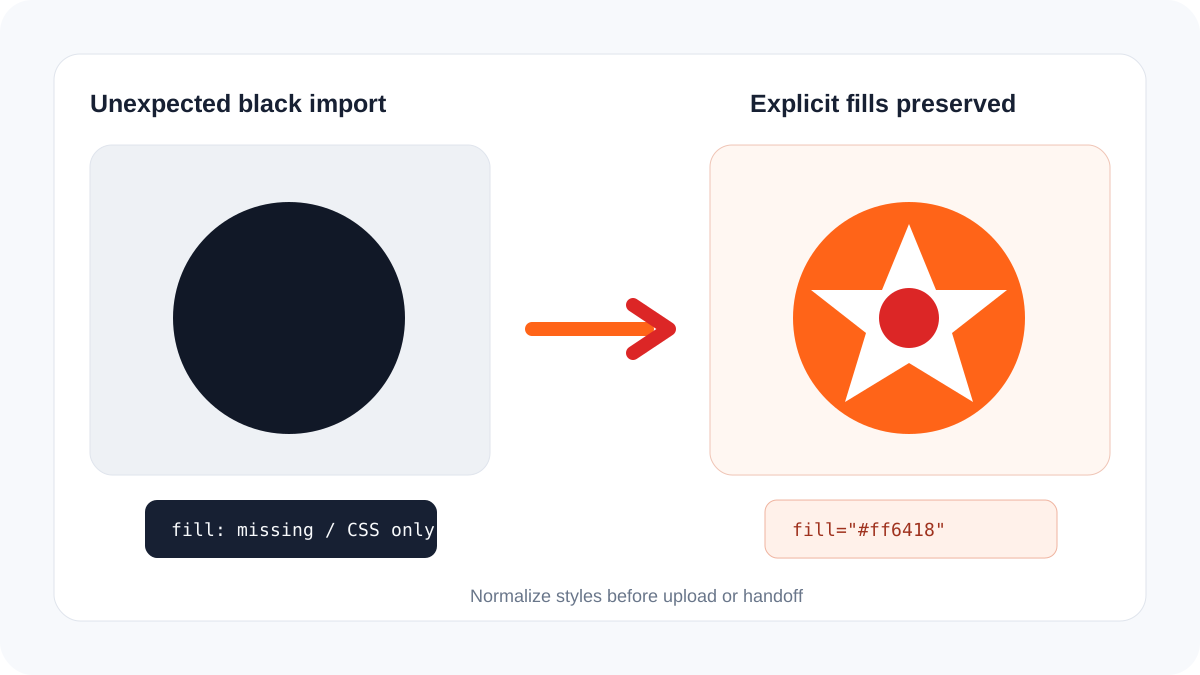
An SVG often turns black because its shapes have no explicit fill, rely on external CSS, inherit currentColor from a new environment, or lose a referenced gradient, mask, or style during import. Black is the default fill for SVG shapes when no other paint reaches them. Inspect the file before recoloring it: normalize unsafe markup with the SVG sanitizer, then use the SVG color replacer only when the intended colors are known.
Identify where the color changes
Open the same file directly in a browser, inside the target application, and in a vector editor. If it is correct in the browser but black after upload, the importer probably ignores a style block, class, filter, or inherited color. If it is black everywhere, the file itself may lack usable fill values.
| Symptom | Likely cause | Safe next step |
|---|---|---|
| Every shape becomes black | Missing fills or CSS was removed | Add explicit fill attributes |
| Icon follows page text color | currentColor is intentional | Set color in the host or replace it |
| Only a gradient area is black | Broken paint-server reference | Repair the gradient ID or use flat fills |
| Artwork disappears | fill is none, opacity is zero, or a mask failed | Inspect fill, opacity, mask, and clipping |
| Colors shift after upload | Importer has limited SVG support | Flatten supported styles into attributes |
Fix the file without destroying it
- Save an untouched copy.
- Run the SVG design checker and note style blocks, currentColor, masks, filters, gradients, and embedded images.
- If external classes define the artwork, convert those declarations into direct fill and stroke attributes.
- Preserve intentional transparency. Do not replace every fill with one brand color unless the artwork is meant to be monochrome.
- Give gradients and masks unique IDs when multiple SVGs share a page.
- Reopen the repaired file on white, dark, and checkerboard backgrounds and in the destination application.
Special cases in websites and design tools
For an inline website icon, currentColor is often useful because CSS can recolor the SVG. The same file loaded as an image or uploaded to another service may no longer receive that color. A production handoff should use explicit colors when predictable appearance matters more than theme inheritance.
Some cutting and design applications accept only a simpler subset of SVG. Flat fills and paths travel more reliably than linked CSS, browser filters, or complex masks. Simplifying compatibility features is different from rasterizing the artwork.
Frequently asked questions
Why is the SVG black in Cricut or Canva but colored in my browser?
The browser may apply CSS or inherited values that the importer does not support. Convert essential styling into direct attributes and test again.
Can I replace black with the original colors automatically?
Only if those colors still exist in the file or you know the approved palette. Missing information cannot be recovered with certainty.
Is a black SVG always broken?
No. Many icons are intentionally monochrome and use currentColor so the surrounding application controls their appearance.